

Revit plugin
Parameter Exchange
Revit parameters to Excel, and safely back again.
Export any category's instance and type parameters, edit them in Excel, and preview every change before it is written to the model.
Overview
Deliberately two-stage, on purpose.
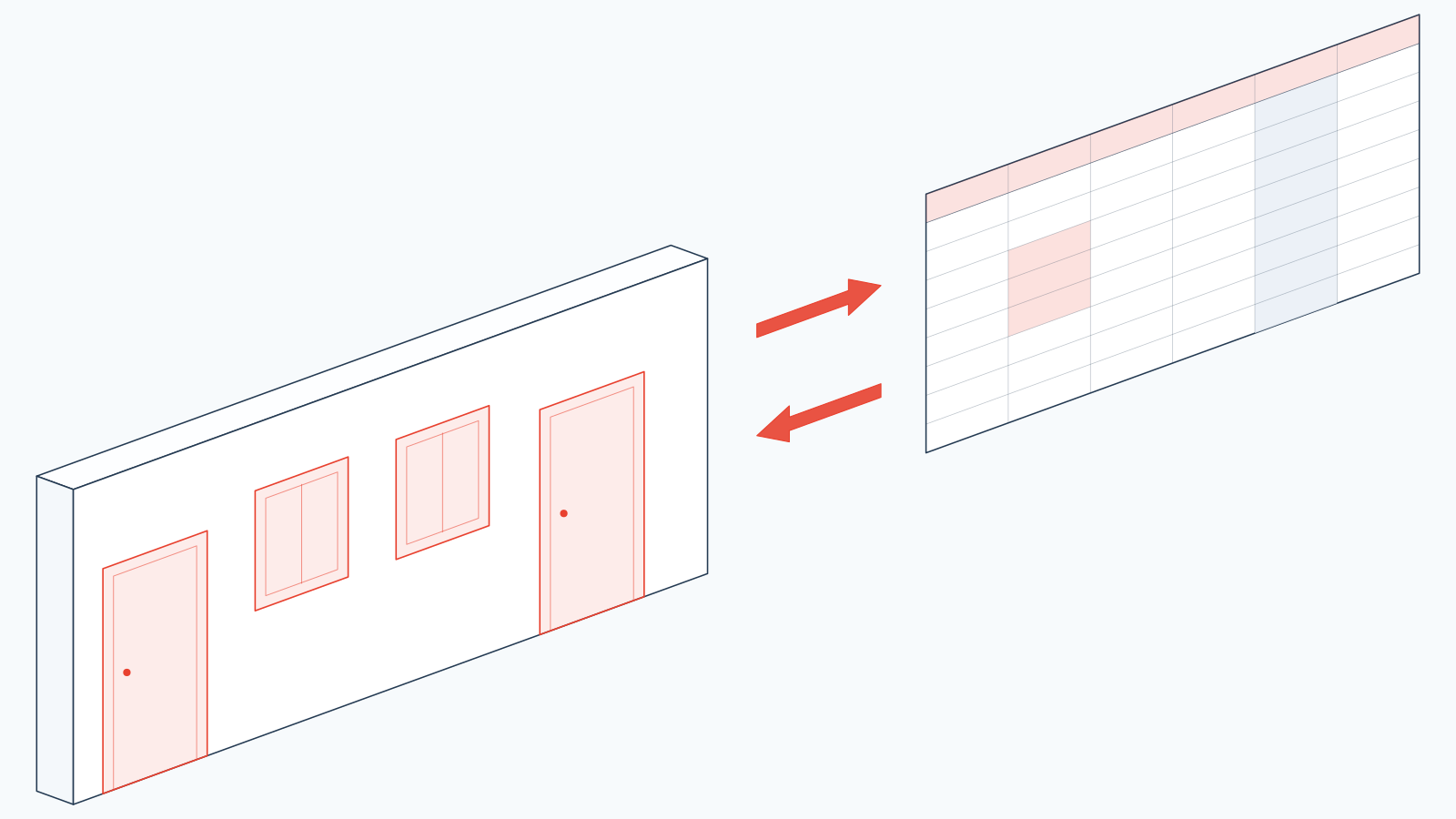
Parameter Exchange moves parameter data out to Excel and back again. You choose categories and parameters, preview what will be read, and export a workbook with one sheet per category. Instance and type parameters sit side by side, read-only columns are greyed and locked, and every row carries the element's UniqueId.
Import is where the care goes. The plugin reads the file, compares each cell against the current model and against a hidden baseline of the values at export, then shows exactly which parameters will change before anything is written. Nothing touches the model until you confirm, and the write itself runs inside one Revit transaction — a single undo step.
Capabilities
What it does
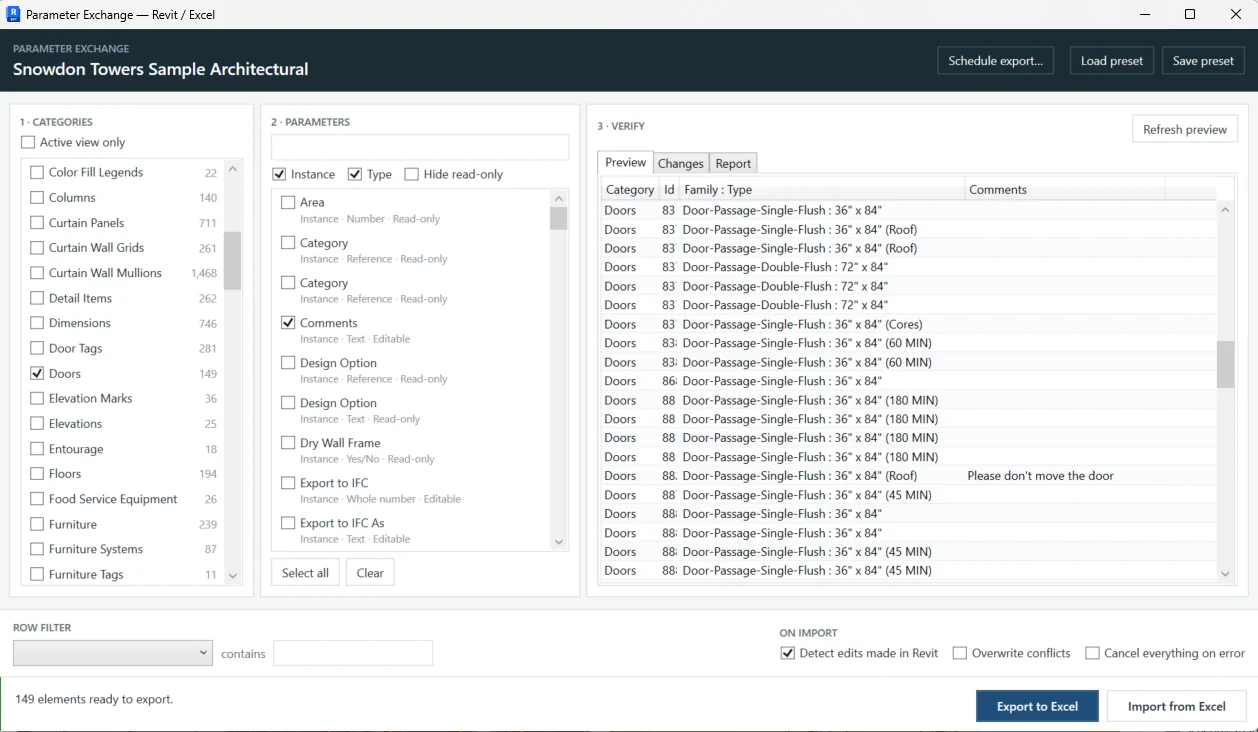
Category and parameter picker
Select any populated category with live element counts, then pick from the parameters those elements actually expose. Each entry shows scope, data type and whether it is editable.
Instance and type together
Instance and type parameters can sit in the same sheet. Type columns are labelled, and type values are read once per type rather than once per instance, which keeps large models fast.
Preview before export
A verify panel renders the first 500 rows of the extraction before any file is written, so you can confirm the selection returns the elements you expected. The file itself is not truncated.
Locked identity columns
The workbook protects the UniqueId, ElementId and Family : Type columns, greys out read-only parameters and attaches a comment explaining that edits there are ignored.
Change and issue report
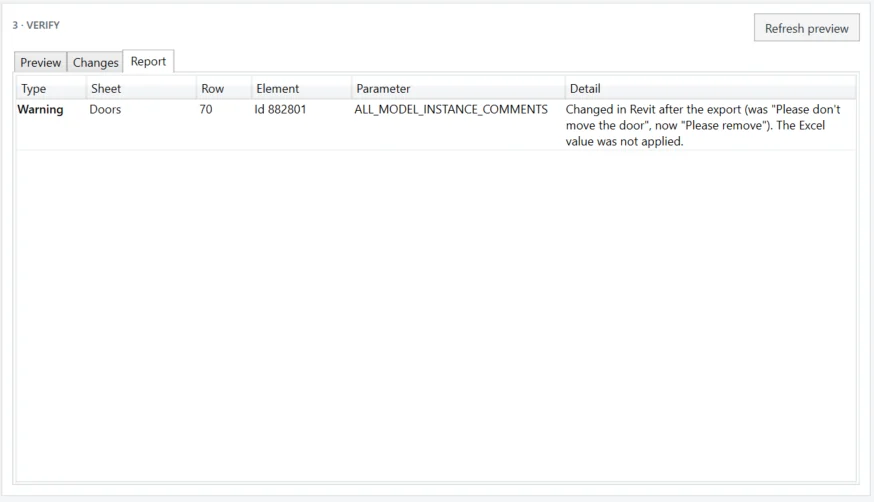
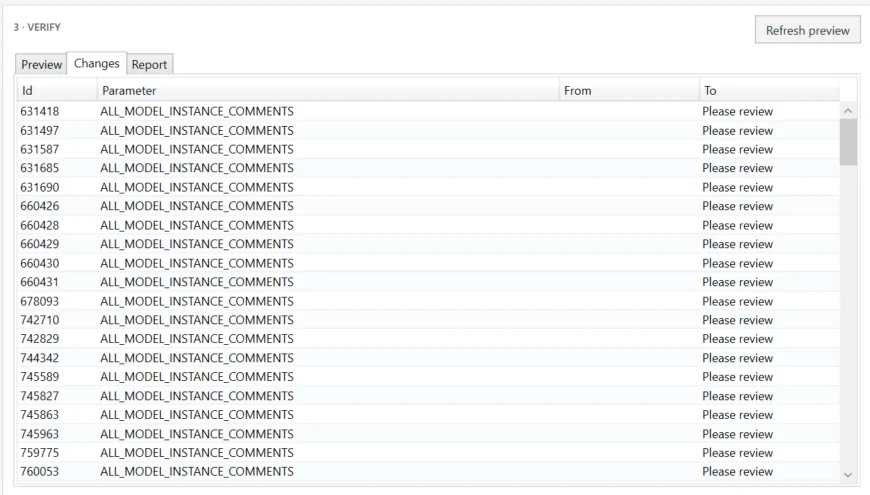
A changes tab lists every element, parameter, old value and new value. A report tab lists every warning and error with sheet, row, element and parameter. Clicking a row selects that element in Revit.
Reusable presets
A category, parameter, filter and option selection can be saved as a named preset. Loaded into a different model, missing categories and parameters are reported rather than silently dropped.
The round trip
Export, edit, and back — with the safeguards named.
The buyer's real question is not whether data can leave Revit. It is what happens when it comes back. Here is exactly what the software does at each stage.
Export
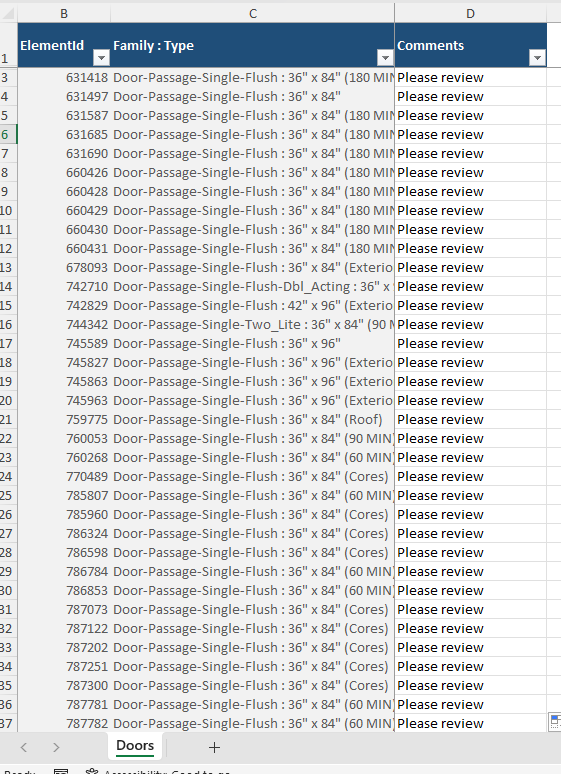
You pick categories and parameters and save a workbook. Each category becomes a sheet: readable headers with units, a hidden machine key row, then the data. Column A is the element's UniqueId. Two hidden service sheets record the model name, the export timestamp and — when edit detection is left on — a baseline of every writable value at the moment of export.
Edit
You work in Excel. Identity columns and read-only parameter columns are locked and shaded; only editable cells are unlocked. Sorting and filtering are explicitly permitted, because matching is by UniqueId and not by row position.
Read and check
On import the workbook is read on a background thread. A missing service sheet, a deleted key row, an unrecognised parameter, a duplicated UniqueId from a copied row, a row with no UniqueId, or a file exported from a different document — each is reported before anything else happens.
Compare
Each row is matched to an element by UniqueId. For every column three values are compared: the Excel cell, the current model value and the baseline. Identical values are skipped, read-only parameters are reported and skipped, and where the model has drifted from the baseline the change is flagged as a conflict and not applied. No transaction is open at this stage — closing the window here leaves the model untouched.
Confirm
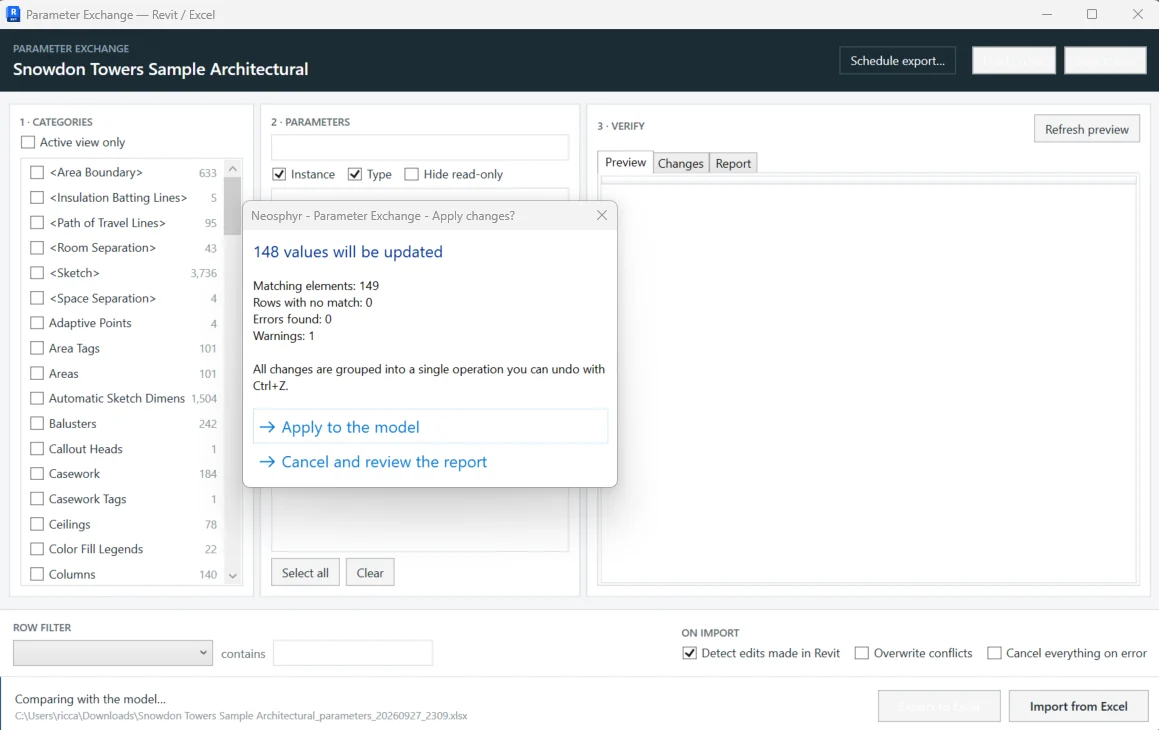
A dialog states the count — how many values will be updated, how many rows matched, how many errors and warnings — and notes that everything is grouped into a single undoable operation.
Write
All writes run inside one Revit transaction. Values are converted per storage type, and anything Revit rejects becomes a row in the report rather than a modal dialog. With rollback enabled, a single error leaves the model completely unchanged.
Also included
Schedule export
A separate schedule window lists the model's schedules and does two things. A preview shows the schedule exactly as Revit renders it — the same text, units and rounding you see on screen.
Separately, each visible column is resolved back to the real parameter behind it, so a schedule can be exported to the same workbook format and imported back through the same engine. Calculated fields, combined parameters and counts have no parameter behind them and are listed as skipped.
Key schedules and multi-category schedules cannot be round-tripped, and grouped schedules export one row per element rather than matching Revit's grouped display.
How it works
Where it sits in a day's work.
Pick what to export
Choose categories and the parameters those elements expose, optionally restricted to the active view, and verify the preview before writing a file.
Edit in Excel
Fill or correct values in the unlocked columns. Sort and filter freely — matching is by UniqueId, so row order does not matter.
Import and review
The plugin compares every cell against the model and the baseline, then shows what will change and what it refused to change.
Apply
Confirm, and the whole set is written in one Revit transaction that undoes with a single Ctrl+Z.
Benefits
What changes day to day
- See exactly which values will change before anything is written.
- One undo step for an entire import, however large.
- Edits made in Revit after the export are detected, not silently overwritten.
- Sorting and filtering in Excel cannot break the element matching.
- Read-only columns are locked and marked, not discovered on failure.
- Every skipped row and rejected value is reported with sheet, row and parameter.
Specification
The facts
- Revit versions
- 2024 · 2025 · 2026 · 2027
- Environment
- Project documents only — not the family editor
- File format
- Excel workbook (.xlsx)
- Workbook structure
- One sheet per category, plus hidden service sheets holding the export record and the baseline
- Matching key
- Element UniqueId, with ElementId as a fallback
- Parameter scope
- Instance and type
- Data types
- Text, whole number, number with units, Yes/No, and references resolved by name to materials, levels and element types
- Write scope
- Updates existing elements. It does not create or delete elements.
- Transaction
- A single transaction and a single undo entry, with optional full rollback on any error
- Conflict handling
- Baseline comparison; conflicts are skipped by default and overwriting is opt-in
- Presets
- Saved to your user profile and reusable across models
Pricing
Parameter Exchange licences
Annual, per named seat, two devices each. Every plan is the complete product — the tiers differ only in how many people may use it.
All prices exclude VAT. Any tax that applies where you are is calculated and shown at checkout.
| Plan | Seats | Per year, excl. VAT |
|---|---|---|
| Individual | 1 user | £175 |
| Multi User | 3 users | £450 |
| Business | 10 users | £1,250 |
| Corporate | 25 users | £2,625 |
Download
Get the installer
Version 1.0.4, signed, free to download. One installer covers Revit 2024, 2025, 2026 and 2027 — it detects what you have and ticks those versions for you.
You will need a licence key to use it, and a 14-day trial key is free. System requirements · Ask for a trial key
Parameter Exchange
Revit 2024 · 2025 · 2026 · 2027 — Windows
1.0.4·7.2 MB·MSI·signed
Questions
Frequently asked
Can it create new elements from Excel?
No, and that is deliberate. Rows without a UniqueId are reported and skipped. The tool updates elements that already exist; it does not place anything.
Is it a live sync with Excel?
No. It is a manual export, edit and import cycle. There is no background synchronisation, which is what makes the review step possible.
What if someone edits the model while I have the file open?
That is exactly what the baseline is for. At import the tool compares the Excel value, the current model value and the value at export. Where the model has moved on, the change is flagged as a conflict and the Excel value is not applied — unless you explicitly choose to overwrite conflicts.
What happens if one value fails to write?
It becomes a row in the report rather than a modal dialog, so a large batch does not stall. If you enable the rollback option, a single error rolls back the entire transaction and the model is left unchanged.
Can I sort and filter the spreadsheet?
Yes. Matching is by UniqueId rather than row position, and sorting and filtering are explicitly permitted by the sheet protection.
Are there parameter types it will not handle?
Yes. Text, whole numbers, numbers with units, Yes/No and element references are supported. Anything else is rejected and reported as an unsupported data type. One limitation worth knowing: a type parameter appearing on many instances is written once per row, so the last row processed wins.
Try Parameter Exchange for 14 days.
Full functionality, no features disabled. Tell us your Revit version and we will set it up.